Octopus supports variables so that your deployment processes and runbooks can be parameterized. This allows your processes to work across your infrastructure without having to hard-code or manually update configuration settings that differ across environments, deployment targets, channels, or tenants.
For instance, when you deploy software into your test environment, you may need to provide the connection string for the test database, and when you promote the release to production, you need to provide the connection string for the production database. By assigning the connections strings as variable values and scoping those values to the test and production environments, the same deployment process works for both environments. When the software is deployed to test, the test database is used, and when the software is deployed to production, the production database is used:
| Name | Value | Scope |
|---|---|---|
| database | TestSQLConnectionString | Testing |
| database | ProductionSQLConnectionString | Production |
You can manage the variables for your projects, by navigating to your project in the Project tab of the Octopus Web Portal and selecting Variables:
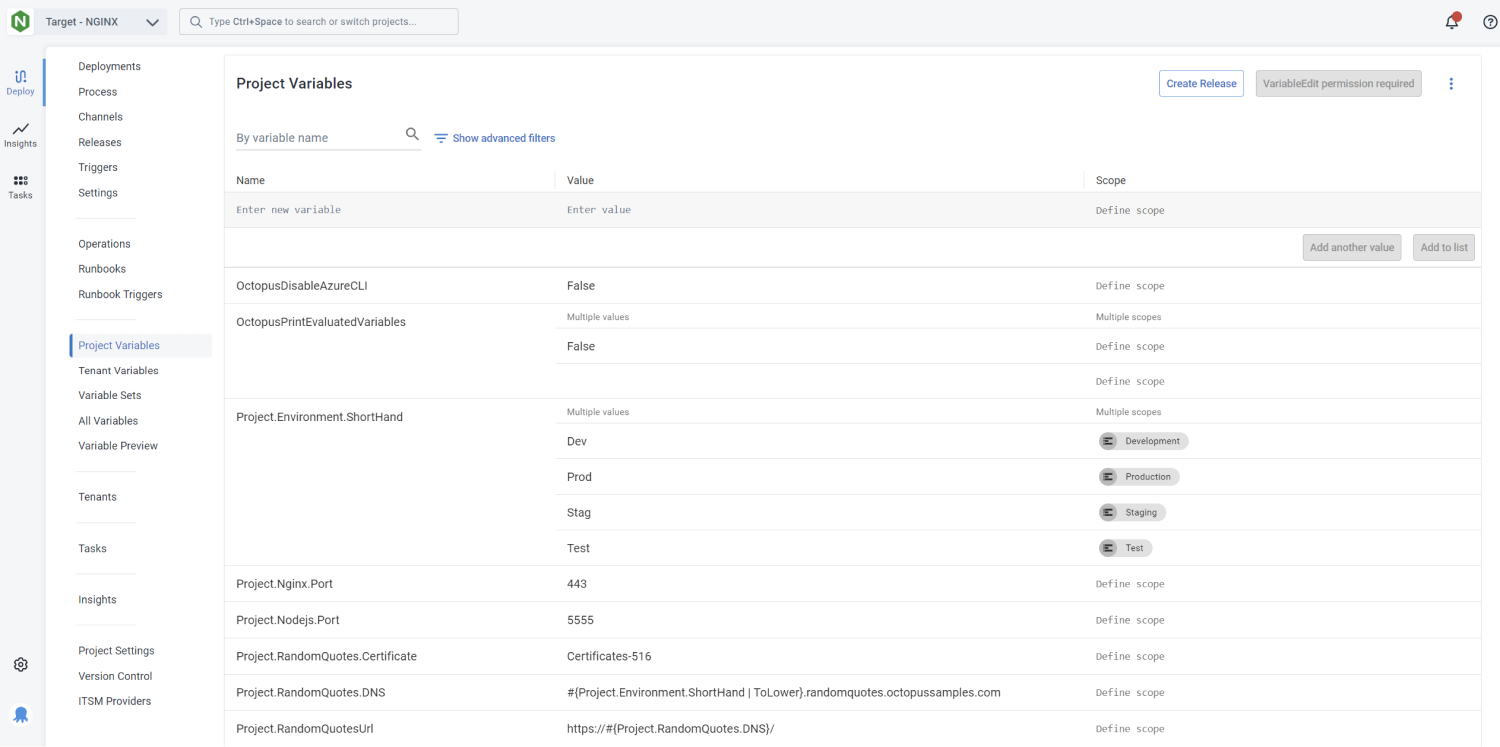
Variables in runbooks
A project’s variables are available to both the runbooks and the deployment process, and the process for consuming variables is the same (see an example).
Variables specific to a runbook
There are scenarios where a variable may be specific to a runbook, and you don’t want it to be available to other runbooks or the project’s deployment process (this situation is common for prompted variables).
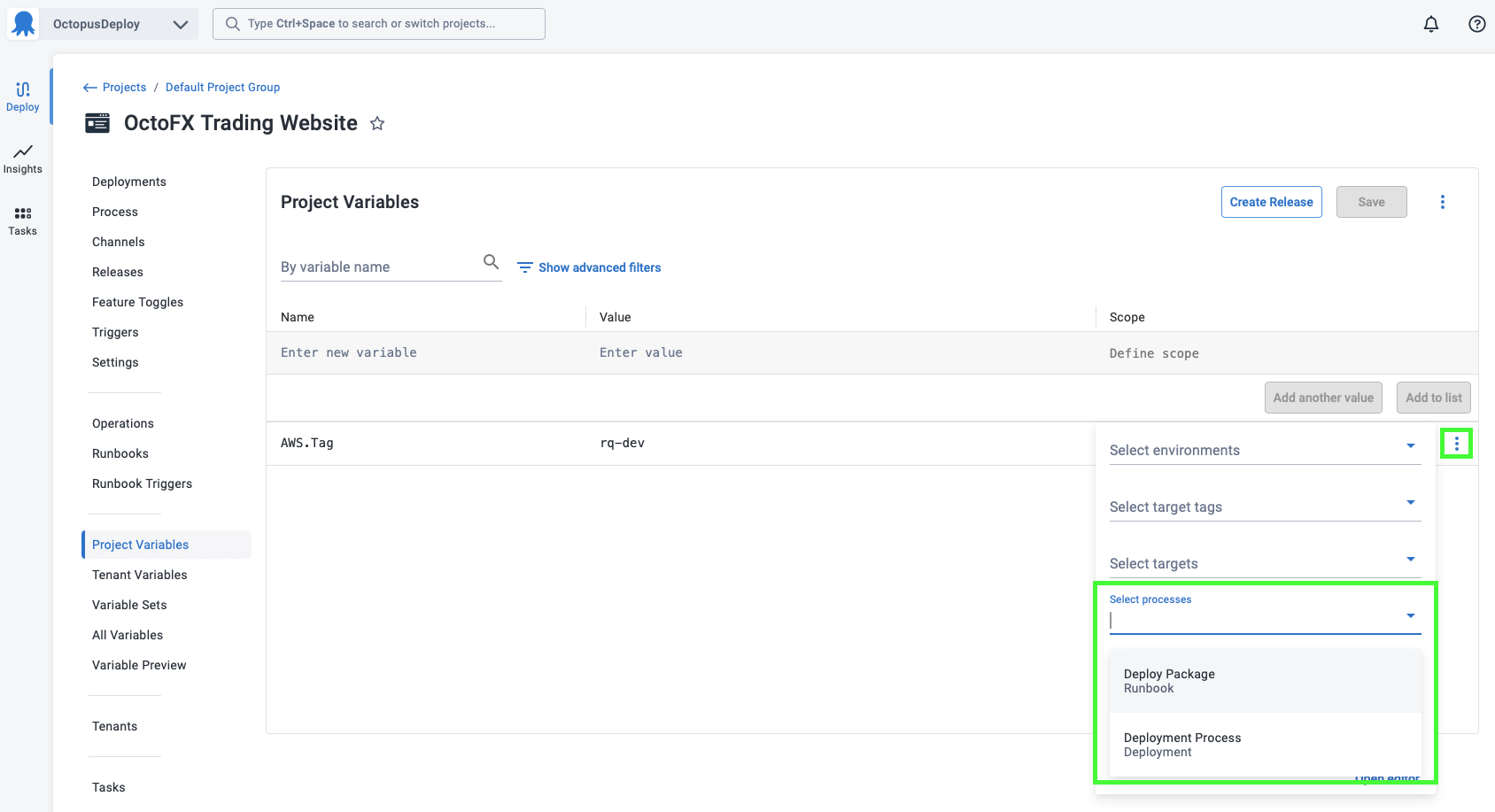
Variables can be scoped to specific runbooks, or to the deployment process, by navigating to Project ➜ Variables, adding a new variable, and defining the scope. On the scope dialog, there is a Processes field, which when populated restricts the variable availability to only the selected runbooks or deployment process.
Prompted variables in runbooks
Prompted variables can be defined for runbooks. By default, prompted variables will prompt for the value when deploying or when running a runbook. By scoping prompted variables to one or more processes, they can be restricted to only prompt when deploying or for specific runbooks.
Review and update snapshot variables
When you publish a runbook, Octopus takes a snapshot of the variables as they exist at that moment. If your project’s variables change afterwards, the snapshot keeps the older values until you update it.
Review Variables on the runbook snapshot page lets you compare the snapshot against your project’s current variables and update only the variables you choose. The rest of the snapshot keeps the values it was created with, so you can correct a single variable without pulling in unrelated changes made since the snapshot was taken.
Before you begin
You’ll need:
- The VariableView or LibraryVariableSetView permission on the project, to see the button and the comparison.
- The RunbookEdit permission on the project, to apply the update.
- A project that doesn’t store its variables in Git. Selective updates aren’t supported once a project’s variables have been migrated to Git.
To review and update selected variables:
- Using the project side menu, navigate to Operations ➜ Runbooks.
- Select the runbook, then select the snapshot you want to update.
- Scroll to the Variable Snapshot section and click Review Variables.
- Review the variables listed under Changed. Octopus selects all of them for you, so clear the check box next to any variable you want to leave as it is.
- Click Update.
- Check the summary of what you’re about to change, then click Confirm.
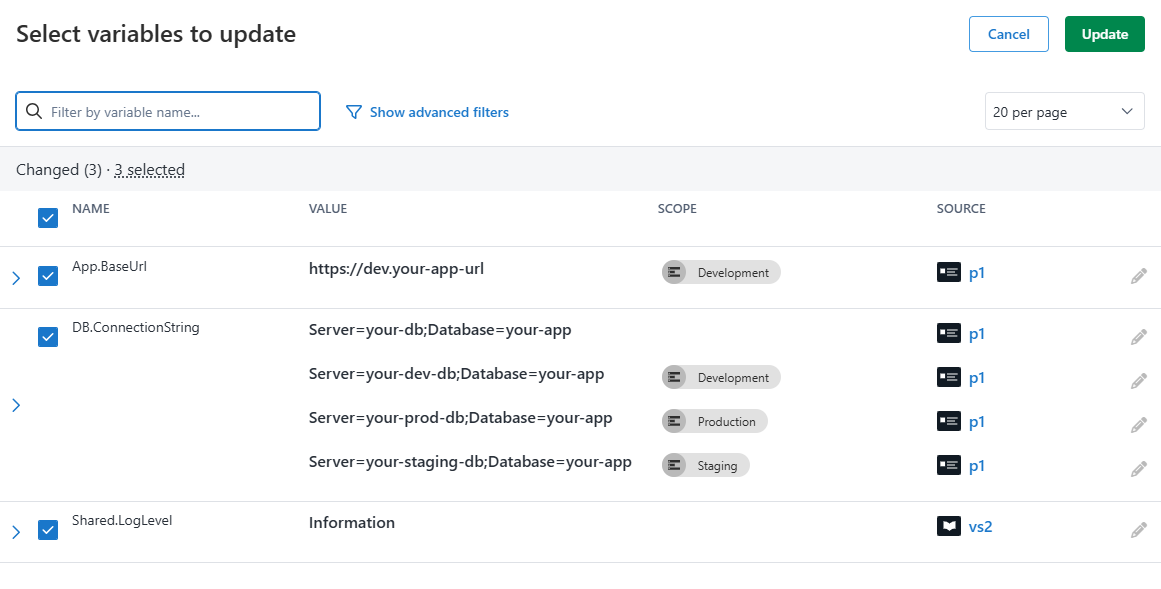
The Variable Snapshot section shows the updated snapshot, and the runbook uses the updated variables the next time it runs. Variables you didn’t select keep the values they had when the snapshot was created.
To replace every variable in the snapshot instead of choosing individual variables, use Update All Variables.
Runbooks variables in Git projects
When snapshotting a Runbook in a Git project, the variables will always be taken from the default branch. The Git reference and commit that was used to create the snapshot is shown on the Runbook snapshot page.
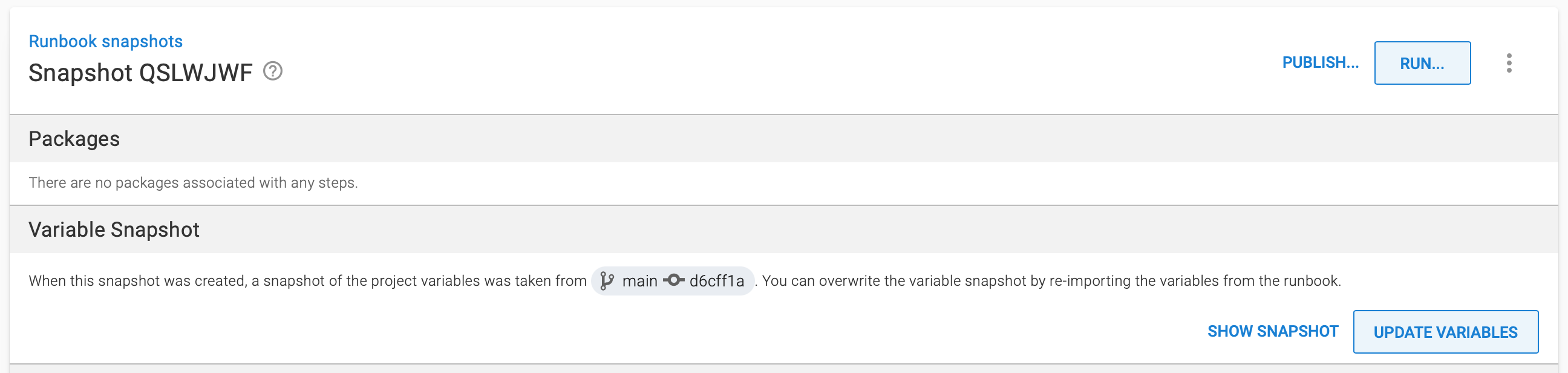
To use a different branch to snapshot variables, you will need to change the default branch for the project.